


A Comprehensive Guide to Uninstalling Apps on a Mac
Removing programs from a Mac can be surprisingly simple. In many cases, all you need to do is drag the application’s icon to the Trash. However, some apps store files in various locations on your hard drive, which may require additional steps to ensure a complete removal. Unlike Windows, macOS does not have a built-in uninstall feature, so understanding how to uninstall apps effectively can save time and effort.

Why Delete Apps on Your Mac?
Applications take up valuable disk space, potentially slowing down your computer. Additionally, outdated software versions may conflict with newer ones, causing glitches. Deleting unused apps not only improves performance but also frees up space for more critical files or applications. Think of it as decluttering your digital workspace for better efficiency.
How to Uninstall Apps on macOS
Uninstalling apps on a Mac can be straightforward or require extra effort, depending on the app type and where it stores its files.
Basic Method: Drag and Drop
- Exit the App: Ensure the application you want to delete is not running.
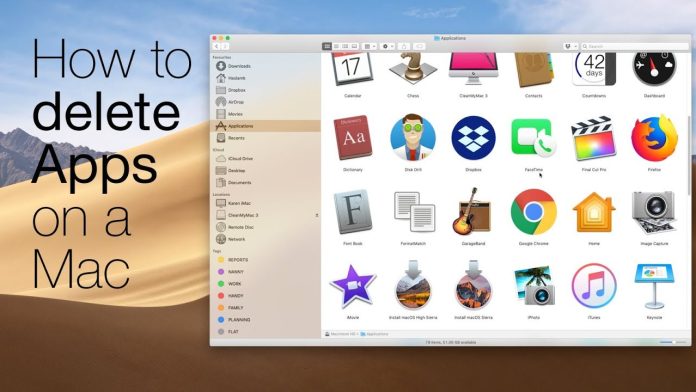
- Open Applications Folder: Locate the app in the Applications folder. You can access this folder via the Finder (blue face icon) or by clicking the hard disk icon.
- Drag to Trash: Drag the app’s icon to the Trash.
- Empty Trash: Right-click the Trash icon and select “Empty Trash” to permanently remove the app and free up space.
For bundled apps, this method usually removes the majority of associated files. To view an app’s bundle, hold the Control key and click its icon, then select Show Package Contents.
Uninstalling Apps from the Mac App Store
Apps downloaded from the Mac App Store are even easier to remove:
- Delete the app from the Applications folder.
- Check and delete its related files in
User/Library/Containersif necessary.
Advanced Method: Removing Additional Files
Some applications store files in various locations, such as the Library folder. These files, including preferences and support files, may remain even after the app is removed.
- Check Documentation: Look for uninstall instructions or an uninstall utility. Many apps, especially those installed from a disk image, include an uninstaller.
- Search for Files: Use Spotlight Search to locate leftover files. Search terms may include the app name (e.g., “Office”) or developer name (e.g., “Microsoft”).
- Manually Delete Files: Navigate to Library folders and drag orphaned files to the Trash.
Common folders for leftover files:
- ~/Library/Application Support/
- ~/Library/Preferences/
- ~/Library/Caches/
Handling Orphan Files
Orphan files can occupy unnecessary disk space. While preference files are often small and harmless, support files for larger programs, like GarageBand, can be substantial. Use these steps to identify and remove them safely:
- Search for app-related folders in the Library.
- Use caution when deleting files shared by multiple programs, such as suites like Microsoft Office, as it may affect functionality.
Tips for Deleting Apps on a Mac
- Use Third-Party Tools: Tools like AppCleaner, AppZapper, or AppTrap simplify the process of locating and deleting leftover files. Many are free and highly effective.
- Avoid Deleting Invisible Files: Some files are hidden for a reason—they may be critical to your macOS system. Avoid deleting these unless you’re using a trusted uninstaller.
- Empty the Trash: Deleting an app without emptying the Trash won’t free up space. Ensure you complete this step.
- Log in as Admin: Administrator privileges are required to uninstall certain apps. If you’re using a work computer, contact IT support for help.
- Check for Shared Files: When uninstalling components of software suites, ensure you’re not deleting shared files that other apps rely on.
7 Additional Tips for Efficient Uninstallation
- Document uninstall methods when you install apps for easy reference.
- Ensure your Trash is empty before starting to avoid confusion.
- Always log in with admin credentials when uninstalling apps.
- Opt for free utilities if premium features aren’t necessary.
- Retain preference files if you plan to reinstall the app.
- Be cautious with suites like Microsoft Office, as their components often share files.
- To remove app icons from the Dock, simply drag the icon off the Dock and release it.
Why Regular Uninstallation Matters
Uninstalling unused apps is more than just housekeeping—it optimizes your Mac’s performance and frees up valuable resources. Whether you’re upgrading software or clearing space, keeping your system lean ensures it runs efficiently.
By following these steps and tips, removing software from your Mac becomes a straightforward and satisfying process. With the right tools and approach, you can maintain a clutter-free and efficient Mac environment.